
iWeb Tip #1 – Flash in iWeb


See how to get Flash SWF files into iWeb
This tutorial will show you how to get an Adobe Flash created file into iWeb. Flash adds all sorts of interactivity to your site as well as fun animations. It really makes your sites come to life. iWeb does not accept those files natively to just drag and drop them in, so how can you get those files into iWeb? Well, the HTML Snippets is the key. If you don’t know what flash is or how to use it there are many books, podcasts, online tutorials that can help you learn. This tutorial is just how to get that flash created file into iWeb. So buckle up, here we go.
1-Create flash .swf file
2-Place swf file on server (like your iDisk (MobileMe) or your own server). If using MobileMe I recommend making a folder called “flash” in your sites folder like this: iDisk/Web/Sites/flash/myflashfile.swf
If your not using MobileMe and using your own server like GoDaddy, iPower, etc. then you could just make a folder on the root level of your server called “flash” and put it in there. That way your link to the file become https://www.yoursite.com/flash/yourfile.swf
3-Go to iWeb, choose HTML Snippet and paste this code:
<object classid="clsid:d27cdb6e-ae6d-11cf-96b8-444553540000" codebase=" https://fpdownload.adobe.com/pub/shockwave/cabs/flash/swflash.cab#version=8,0,0,0" width="550" height="400" align="middle"> <param name="movie" value="https://www.yoursite.com/flash/myflashfile.swf"> <param name="allowScriptAccess" value="always"> <embed type="application/x-shockwave-flash" pluginspage="https://www.adobe.com/go/getflashplayer" width="550" height="400" align="middle" src="https://www.yoursite.com/flash/myflashfile.swf" allowScriptAccess="always"></embed></object>
4-Now just change the code in to your own URL and flash width and height and hit apply in the HTML Snippet.
5-You now have successfully put a flash file in your iWeb document.
If No Flash, Show Image
Many users these days are using devices that simply don’t have a flash player (i.e. iPhone, iPad, iPod Touch, Etc). If they visit a page that has flash it shows a blank spot on the webpage. Like the image below:

Many people are starting to use alternatives to flash (such as HTML 5, JQuery, etc) so it shows on all devices. Well here is a bit of code that you can use as an alternative to the code above to get flash into your iWebsite and if the browser the user is using doesn’t have flash it will default to an image instead, that way they at least don’t see a blank screen and your site can still be beautiful.
Here’s an image of viewing a webpage that has a flash file with this alternative code to show an image on the iPad. Notice that there is not black screen where the flash should be, there is now an image as it code has detected that there is no flash player and instead is showing the image.
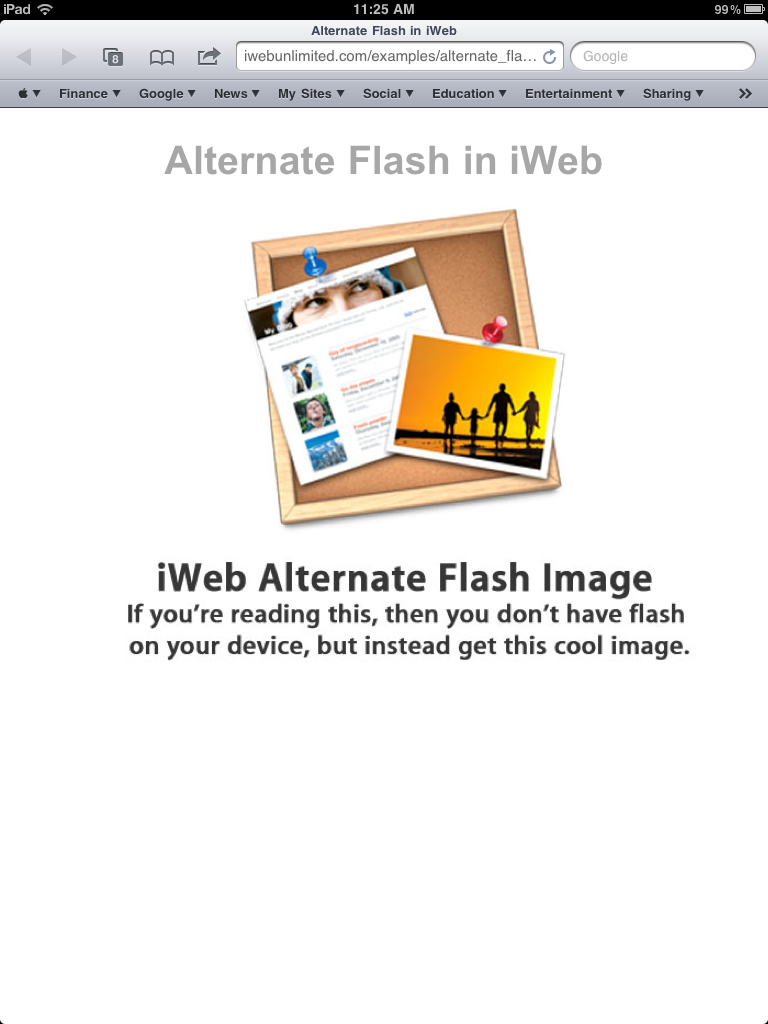
Here is an example. Click the link below. If you view it on a device/computer that has flash player you will see an animating flash (swf file) that says “Flash in iWeb”. If you view the link in on a device/computer that doesn’t have flash, then you will see a image that (of course) is not animating that says “iWeb Alternate Flash Image” with a description. Check it out.
So here’s how to do it:
1) Create .swf file and an image/graphic the same size. You can create the image in photoshop, or you could even just make a layout in iWeb, then use the screenshot tip using command + shift + 4 and take a screenshot of the area, and crop it in preview to make sure it’s the correct width and height that matches your swf file.
2) Place swf file and image on your server (like your iDisk (MobileMe) or your own server). If using MobileMe I recommend making a folder called “flash” in your sites folder like this: iDisk/Web/Sites/flash/myflashfile.swf
If your not using MobileMe and using your own server like GoDaddy, iPower, etc. then you could just make a folder on the root level of your server called “flash” and put it in there. That way your link to the file become https://www.yoursite.com/flash/yourfile.swf
3) Go to iWeb, add an HTML Snippet and paste this code:
<SCRIPT LANGUAGE=JavaScript>

<!--

var plugin = 0;

if (navigator.mimeTypes && navigator.mimeTypes["application/x-shockwave-flash"] && navigator.mimeTypes["application/x-shockwave-flash"].enabledPlugin) {

if (navigator.plugins && navigator.plugins["Shockwave Flash"])

plugin = 1;

}

else if (navigator.userAgent && navigator.userAgent.indexOf("MSIE")>=0

&& (navigator.userAgent.indexOf("Windows 95")>=0 || navigator.userAgent.indexOf("Windows 98")>=0 || navigator.userAgent.indexOf("Windows NT")>=0)) {

document.write('<SCRIPT LANGUAGE=VBScript\> \n');

document.write('on error resume next \n');

document.write('plugin = ( IsObject(CreateObject("ShockwaveFlash.ShockwaveFla sh.3")))\n');

document.write('if ( plugin <= 0 ) then plugin = ( IsObject(CreateObject("ShockwaveFlash.ShockwaveFla sh.4")))\n');

document.write('if ( plugin <= 0 ) then plugin = ( IsObject(CreateObject("ShockwaveFlash.ShockwaveFla sh.5")))\n');

document.write('</SCRIPT\> \n');

}

if ( plugin ) {

document.write('<OBJECT classid="clsid:D27CDB6E-AE6D-11cf-96B8-444553540000"');

document.write(' codebase="https://download.macromedia.com/pub/shockwave/cabs/flash/swflash.cab#version=3,0,0,0" ');

document.write(' ID=flash WIDTH=585 HEIGHT=162>');

document.write(' <PARAM NAME=movie VALUE="https://yoursite.com/flash/flashfile.swf"> <PARAM NAME=loop VALUE=false> <PARAM NAME=quality VALUE=high> <PARAM NAME=bgcolor VALUE=#FFFFFF> ');

document.write(' <EMBED src=" https://yoursite.com/flash/flashfile.swf" loop=false quality=high bgcolor=#FFFFFF ');

document.write(' swLiveConnect=FALSE WIDTH=585 HEIGHT=162');

document.write(' TYPE="application/x-shockwave-flash" PLUGINSPAGE="https://www.macromedia.com/shockwave/download/index.cgi?P1_Prod_Version=ShockwaveFlash">');

document.write(' </EMBED>');

document.write(' </OBJECT>');

} else if (!(navigator.appName && navigator.appName.indexOf("Netscape")>=0 && navigator.appVersion.indexOf("2.")>=0)){

document.write('<IMG SRC="https://yoursite.com/flash/flash_image.jpg" WIDTH=585 HEIGHT=162 BORDER=0>');

}

//-->

</SCRIPT><NOSCRIPT><IMG SRC="https://yoursite.com/flash/flash_image.jpg" WIDTH=585 HEIGHT=162 BORDER=0></NOSCRIPT>
4) Now just change the code in your HTML Snippet to your own URL’s, change the flash width and height, and hit apply.
5-You now have successfully put a flash file in your iWeb document with an image alternative.
I hope this tutorial helps you to get flash in iWeb with ease as well as provides a good site experience wheather the browser being used has flash or not. If you feel this tip has helped you please consider donating to the iWebUnlimited cause.
[iWeb-Code=’donation’]












May be a very simple answer to this but i have not been able to figure out how I can insert text in either my header or footer. Any advice?
add a text box and move it into the header/footer
how do i create an image of the swf file?
Hi,
trying to contact any one on helping me log into the website. The password given to me by ‘iWebUnlimited’ as a new user did not work. Plus, the link to ‘Reset Password’ sent me to this message:
Parse error: syntax error, unexpected ‘,’ in /home/content/99/3651899/html/_iWebUnlimited/forum/bb-templates/iBlogProForum/password-reset.php on line 12
Any help would be appreciated!
Thanks,
VoodooZ
I was wondering which path to enter if I only publish in a local folder? If I enter just the .swf filename (instead of an html path) nothing loads…
Thanks!!!
Freakwave
I suppose I’m not the only one possessing all the enjoyment the following! Keep up the excellent work.
Excellent tip but I have a question:
I’ve already published a .swf in iWeb thanks to your tutorials. That .swf has an active link to another site. Well, I want to replace the original HTML code by this last one in order to use its new capabilities. My question:
is there any way to put an active link in the alternate “image” so the users that doesn’ have flash, using that “alternative” image can still have a link to go to the other site?
Thanks in advance!!
I’m honored to obtain a call from my friend when he uncovered the important suggestions shared on your own site. Studying your blog article is a real amazing experience. Many thanks for thinking of readers just like me, and I hope for you the best of achievements for a professional topic.
Tremendous things here. I’m very satisfied to peer your post. Thank you a lot and I am taking a look forward to touch you. Will you kindly drop me a e-mail?
Hi, i did what it said on this page, but its not working:( it shows just a write page, notthing happend. What did i do wrong :(
Your code works just fine, I’ve tried quite a few of them and they didn’t work at all. Thanks