
iWeb Tip #22 – Google Search in iWeb

Google Search in iWeb
It’s finally here! An easy way to get Google search on your iWeb site! Woo hoo!
So there are a few ways to get a Google Search into your iWebsite, an easy “paste code into an html snippet” way and a “more complex but sweet integrated google results” way. So let’s start with the easy one first, then we’ll move to the more complex one. Here we go!
Simple Google Search Code:
Google Search Box 1:

This code will put a simple Google Search box on your site that gives visitors a choice to search your website or google. When a visitor enters a search term the search will take them to a new page with search results. To add this to your website simply paste this code in an HTML snippet:
<!-- iWebUnlimited Google SiteSearch -->
<font face="Verdana", font size=2, font color="000000">
<FORM method=GET action="https://www.google.com/search">
<input type=hidden name=ie value=UTF-8>
<input type=hidden name=oe value=UTF-8>
<TABLE bgcolor="#FFFFFF"><tr><td>
<A HREF="https://www.google.com/">
<IMG SRC="https://www.google.com/logos/Logo_40wht.gif"
border="0" ALT="Google"></A>
</td>
<td>
<INPUT TYPE=text name=q size=31 maxlength=255 value="">
<INPUT type=submit name=btnG VALUE="Google Search">
<font size=-1>
<input type=hidden name=domains value="iWebUnlimited.com"><br>
<input type=radio name=sitesearch value=""> The Web <input type=radio name=sitesearch value="https://www.iwebunlimited.com" checked> iWebUnlimited.com <br>
</font>
</td></tr></TABLE>
</FORM>
<!-- SiteSearch Google -->
Then simply change the code in red to modify to fit your site. You can adjust the font, size, and color, then (most importantly) add your site’s name and URL. Hit apply on your snippet, publish, and your set!
Google Search Box 2:

This box is the same as Google Search Box 1, but it only searches your site. Simply paste this code in an HTML snippet:
<!-- iWebUnlimited Google Search -->
<form action="https://www.google.com/search" method="get">
<A HREF="https://www.google.com/">
<IMG SRC="https://www.google.com/logos/Logo_40wht.gif"
border="0" ALT="Google" align="absmiddle"></A><br>
<input type="hidden" name="sitesearch" value="https://www.iwebunlimited.com" />
<input type="text" name="q" size="31" maxlength="255" value="" />
<input type="submit" value="Search" />
<input type=hidden name=ie value=UTF-8>
<input type=hidden name=oe value=UTF-8>
</FORM>
<!-- Search Google -->
Then just replace the text in red with your site, hit apply, and your set.
Google Search Box 3:

This box is the same as #3, but it has no Google branding. Just add this code:
<!-- iWebUnlimited Google Search -->
<form action="https://www.google.com/search" method="get">
<input type="hidden" name="sitesearch" value="https://www.iwebunlimited.com" />
<input type="text" name="q" size="31" maxlength="255" value="" />
<input type="submit" value="Search" />
</form>
Again replace the code in red, hit apply, publish, and done!
Google Search Box 4:

This one is just a simple “search the web” Google search. For those that simple want the convenience of search the web through their own website. Just paste this code below:
<!-- iWebUnlimited Google Search -->
<FORM method=GET action="https://www.google.com/search">
<input type=hidden name=ie value=UTF-8>
<input type=hidden name=oe value=UTF-8>
<TABLE bgcolor="#FFFFFF"><tr><td>
<A HREF="https://www.google.com/">
<IMG SRC="https://www.google.com/logos/Logo_40wht.gif"
border="0" ALT="Google" align="absmiddle"></A><br>
<INPUT TYPE=text name=q size=25 maxlength=255 value="">
<INPUT type=submit name=btnG VALUE="Google Search">
</td></tr></TABLE>
</FORM>
<!-- Search Google -->
And that’s it, have fun!
Advanced Google Search in iWeb:
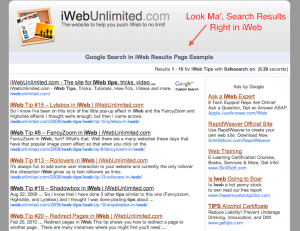
Alright, let’s now dig a bit deeper. This tip here will give you a google search box that when a user searches, they remain on your site and your results will show up on your site as well. WooHoo! It gives users a much better user experience. So here we go:
1) The first thing you need to do is to log in or create a Google Adsense account. Do so by going to https://www.google.com/adsense/
2) After your logged in go to the “Adsense Setup” tab and click the “Adsense for Search”
3) You’ll be guided through a series of questions to setup your search for your site of which are:
- Search Type: Choose “Only Sites I Select”
- Selected Sites: Enter your website (the full site, https://yoursite.com, or https://web.me.com/mobilemeusername
- Optional Keywords: Enter keywords that have to do with your site. Here’s a link with examples.
- More Options: Site Language: Of course choose your language.
- Your site encoding: I recommend leaving it at it’s default.
- Country of Territory: Choose your country.
- Custom Channel: If you’ve made previous ad channels you can set this up in relation to one of those, but if not no worries, just keep the checkbox that says “Automatically create new channel”
- Safe Search: I recommend leaving it on. Keeps inappropriate items out of your visitors search.
Then hit continue.
4) You then can choose the style of the search box you wish to have on your site. So just click the radio button that looks most like it would fit in with your site. You can also choose how many characters you want your search box to be. Feel free to modify to best fit your site.
Then hit continue.
5) The next page asks where the search results will be. Choose the option that says “Open results within my own site”, then specify the URL that the results will be at (this will be a page that we will create later. I suggest putting in https://yoursite.com/results.html or https://web.me.com/mobilemeusername/sitename/results.html, we can always change this later if you need to as well). It also asks you to put in the size of the results in width. The smallest it can be is 795, so we’ll have to be sure we’ll make room for this on our site later on. I recommend just keeping it the default 800px wide.
You then will choose where you would like the ads placed (Don’t worry you’ll get cash for people clicking on the ads that are on your site). I suggest choosing “right only”, unless you want to persuade people to click the ads, in that case choose “top and right”.
The last option on this page is the modification of the colors. It’s a pretty neat feature here where you can change the colors of the search results so it will match your website. So do that here. They have some presets if you’d like to play with those, or you can just change the colors individually.
Then hit continue.
6) The next page simply has you name your new search engine we’ve just setup. Give a name (doesn’t really matter what you name it) , read the additional terms (if you want), click the checkbox that you agree, and hit the “Submit and Get Code” Button.
7) Alright we have arrived! WooHoo! You now have two boxes with code. Copy and paste those bits of code somewhere where you can access it. I personally like to use Evernote (it’s free and syncs with everything), but you could save it in a document (pages, word, google docs, text edit), Apple Mail Notes, etc. Doesn’t matter where you save it, just save it so you can access it later.
So the first box is the search box and second box is the results code. So the first thing we are going to do is copy and paste the search box code into an HTML Snippet in iWeb. This can be anywhere and on as many pages as we’d like. If you want to have a search box on everypage, go for it. Just get that search box on your iWebsite somewhere.
8) Alright now that we have a search box on our website, we now need to make the results page. Sooooo, to do this we are going to create a new page on our site. So go ahead and hit the “Add Page” button in iWeb in the bottom left or click file > New Page, or you can duplicate an existing page by selecting it and pressing “command + d”. Name this page “results” in the sidebar. This will end up being the https://yoursite.com/results.html page the we specified back in step #5. Now design the page how you would like it to look leaving the main content area empty using your imagination that our results will be in the middle.
9) Now that you’ve created and designed the page add a text box onto the page and type in the text box this “%%GOOGLE SEARCH RESULTS%%” (without the quotes). Then stretch the text box to be the size that you would like your results to be. It has to be at least 800px wide (remember when we specified that in step #5) and you’ll want to make it about 875 pixel’s in height too. So adjust your design layout accordingly to this textbox size.
10) OK now, publish your website, either to a folder, your server, or mobileme.
11) Now before this can work, we need to go in and replace that crazy text I had you enter %%GOOGLE SEARCH RESULTS%% with our code. So to do that we need to open up that results.html page we created with an html editor. Again I like to use Coda or Espresso, but you can use TextEdit (if you go into the prefs and turn on the “Ignore Rich Text Commands in HTML” check box). Do a find and replace option by pressing “command + f” search for our crazy text “%%GOOGLE SEARCH RESULTS%% and replace it with our results code.
Then hit save and put your files live online to test.
12) TaDah! Your finished. Go visit your site and test it out to make sure it is working properly.
Troubleshooting:
Your page has to be online for it to work (you can’t test it locally because when you type something in the search box the results will only show up at https://yoursite.com/results.html, if your search is not working for any reason it could be that your results.html file is not in the right spot. Also if your site is brand new to the web it might take some time for your results to show up because google hasn’t cached your site yet. You can try to speed up this caching process by submitting your site into Google by going to https://www.google.com/addurl/?continue=/addurl
If you need to change where the results page is you change that URL in the google search box code.
I already know I’m going to get this question: Do I have to do this everytime I publish. The answer to that is yes and no. Anything that we have to modify outside of iWeb (i.e. the results code), then yes we have to do each time. So what I recommend for this tip is to have your results page in another site (file > new site), get your code setup, and published, then the main site you can update all you want and it won’t effect the results code page cause you won’t be needing to really update that page…really ever. So just get that page online, then you can put the search box on as many pages as you want.
Any other questions feel free to leave in the comments below.
I’ve had a lot of requests for this in the forum, so hopefully this takes care of all your iWeb site searching needs. I’ll probably make a video tutorial on how to do this in the near future for those that want to do the advanced search tip, but are a little overwhelmed or stuck. So stay tuned for that.
If this tip helped you, consider donating to the iWebUnlimited cause by clicking below;
[iWeb-Code=’donation’]

—iJason











I’ve tried several search snippets and they don’t work. I’m really new at this and don’t understand how code works. I must be doing something wrong, but I can’t figure it out. Some questions I have are;
1. Does the “search box” only work on certain pages (ex: welcome, photo, blog, etc) or should it be able to find anything anywhere from anywhere on your website.
2. The instructions state to change the inserts that are red. I of course put my url instead of iwebunlimited, but what do I put in the red “search” and “31are ?
Is there somewhere to go to get more detailed instructions?
Thanks
Linda
I am really inspired along with your writing abilities well with the format on your weblog. Is that this a paid subject matter or did you modify it yourself? Either way keep up the excellent high quality writing, it’s uncommon to peer a nice weblog like this one these days..
This weblog appears to get a large ammount of visitors. How can you get visitors to it? It includes a good individual twist on things. I suppose having something authentic or substantial to state is the most important factor.
Hi,
This isn’t working for me and I know it is because I am not certain which file I am to upload. I added the reults page, manually edited the code via “text edit” and saved the changes. I am using GoDaddy. When I “publish my files to godaddy” I DON’T DO THIS FROM iWeb’s automatic FTP publish feature correct? I thought I had to manually publish my results page, correct? Meaning, I actually go to godaddy via the hosting manager secure login and upload WHAT EXACTLY? THE results.html file?
I would really appreciate the help. Publishing manually has been making me miserable. I have have tried to set up a contact form in the past using iTweak and it never did work so I know that my problem is that I don’t know the proper publishing procedure……
PLEASE HELP!
All you do to publish a new site via FTP is go into iWeb, and where you would normally post a site using mobileme or something (Under ‘Site Publishing Settings” (just click on your site on the left toolbar to get there) is choose ‘Publish To: FTP Server’ (Instead of MobileMe or Local Folder) That is where you put in your godaddy credentials. Under FTP server settings, you enter http://ftp.yourdomainexample.com, then enter your login and password for your godaddy hosting service. Leave the Directory/Path line blank.
Whatever page you want to put the search box in, add an HTML Snippet and paste the code google gives you for the search bar. Then create either a results page or new site and add an HTML Snippet for the other code google gave you for the results box. (I tried putting my results on the same page as the search box and just put both on a new page called ’search’…still waiting to see if it worked.)
Hope this helped!
Click on my name and tell me if it did (not sure if i get notified automatically if you reply back to me)
Not long ago i came accross your internet site and also have been reading along. I thought I’d leave my very first comment. Nice blog. I am going to keep visiting this site very frequently and keep learning a little more about SEO.
This really resolved my issue, thank you so much!
Youre not the regular blog writer, man. You definitely have something important to contribute to the net. Such a good blog. I will revisit again for more.
My brother recommended I might like this web site. He was entirely right. This post truly made my day. You can not imagine simply how much time I had spent for this information! Thanks!
I enjoy the efforts you have put in this, regards for all the great articles .
How do I get the site search that you have on iwebunlimited? I don’t want a google search and I really like the look of the one you and apple use. Please help!
RegCleaner is pretty good
What an ineresint news. I will be really impressed. Preserve doing good job amigo
Sorry but i just find the google search bar ugly. How did you get the nice apple one. Since i have proper hosting i can use sql servers or what ever is required. Please reply!
Thanks
Oh and also how do you get your nice results page?
nice site you got here ill be sure to bookmark it and tell all my friends.
I dicovered this is a useful and interesting post, so I think it is very helpful and knowledgeable. Thank you for the efforts you have made in writing this script. I am hoping the same best work from you next time as well. practically your creative writing ability has inspired me.
I confess, I have not seen this web site for a long time, however, it was another joy to see such an best things and overpass it. Many thanks for assisting making people realize that excellent points.
Your artical is very simple however retains a touch of elegance along with grace. And when using the options and also customization you could have enabled, I’m sure it will eventually appeal to many bloggers. It’s extremely commendable that you desire to let individuals, the clients, to possess a wide variety of themes for the blogs. Keep these coming!
Hi thank you for all your tips they were really helpful but when I try this one it doesn’t works, I replace the code in red but when I search at my web it find nothing please can you help me thank you so much
We are a gaggle of volunteers and starting a new scheme in our community. Your site provided us with useful info to paintings on. You’ve performed a formidable activity and our entire group can be grateful to you.
grab ones own feed to stay knowledgeable from any sort of update versions. Amazing get the job done and much success with yourbusiness results!
All you do to publish a new site via FTP is go into iWeb, and where you would normally post a site using mobileme or something (Under ‘Site Publishing Settings” (just click on your site on the left toolbar to get there) is choose ‘Publish To: FTP Server’ (Instead of MobileMe or Local Folder) That is where you put in your godaddy credentials. Under FTP server settings, you enter http://ftp.yourdomainexample.com, then enter your login and password for your godaddy hosting service. Leave the Directory/Path line blank.
Whatever page you want to put the search box in, add an HTML Snippet and paste the code google gives you for the search bar. Then create either a results page or new site and add an HTML Snippet for the other code google gave you for the results box. (I tried putting my results on the same page as the search box and just put both on a new page called ‘search’…still waiting to see if it worked.)
Let me know if this helped! But no…you do not need to go to any other website (godaddy, etc.) to complete this tutorial, except for the google adsearch site.
How do you change the background color of the search field and the search button? I’d like for it to look more like the Apple menu.